Search This Blog

Showing posts with label XP TWEAKS. Show all posts

Monday, May 25, 2009

1 Click System Property On XP

xp tricks logo
Do You Know How To View Your System Property In A Click ??
If No, Then Read On...

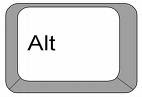
Pressalt+Click On My Computer

Friday, May 1, 2009

How To Disable The Internet Gateway

xp tweaks
If You Are Having The Problem With Your Internet Gateway , And Need To Connect To The Internet Directly Without Any Internet Gateway , Then This Post Will Help You.


[screen shot of internet gateway]

inet gateway
* Start --> Control Panel --> Network Connections
* Select My Network Places From The Right Side Panel
* Click Show icons for networked UPnP devices
* Click Click Yes On The Next Screen.
* Restart Your System

also read: Turn Off Adobe Auto updater

Turn Off Windows Security Alert

windows autoupdater notification remover
If You Don't Know How To Disable Windows Security Alerts Then This Post Will Help You A Lot , Some Of You Might Be Annoyed With The Windows Security Alert Popup. You May Turn It Off In A Few Single Steps.

* Start --> Control Panel --> Security Center

* Click On Change the Way Security Center alerts me.
windowsupdate
* Then Un check The Service Which You Don't Want.
turn windows update off

Friday, April 17, 2009

How To Turn Off Adobe Auto Updater

adobe updater
Here Is A Simple Trick For Removing The Annoying Adobe Auto Updater , Users Who Are Using The Internet Connection Which Has A Limit On Their Download Will Be More Disturbed With This Abobe Updater.
[screenshot of adobe updater]

Steps For Turning Off Adobe Updater :

* Open Acrobat Reader
* Go To Help --> Check for Updates
adobe 1001-tricks
* Click On Preferences
adobe updates off
* Uncheck Automatically check for Adobe updates: And Press OK
turn offf adobe updater
* You Are Done.

also read: How To Remove LK Advani's Ad From Your Blog

Friday, April 3, 2009

How To Remove Yahoo! Messenger Ads

You Can Remove Ads Displayed On Yahoo Messenger Manually In A few Simple Steps.

ads will look similar to this :-
Steps For Removing These Kind Of Ads From Yahoo! Messenger :-

* Close Yahoo! Messenger
* Go To " C:\WINDOWS\system32\drivers\etc "
* Open The File Named "hosts" In Notepad Or Any Other Editors
* After The Line
127.0.0.1 localhost
Add
127.0.0.1 insider.msg.yahoo.com
* Restart Windows.
* Done

""


Also Try These Yahoo! Messenger Ad Removers.


Ad Banner Remover Plus v1.0.3.6
Y.AddsRemover 1.00

Friday, February 20, 2009

Add Your Own Icon To The Drives

You Can Make Your Own Icon For Your Local Disk Drives , CD’s , Dvd’s , USB Pendrives , And So On…

Like This …

Autorun Icon

Procedure For Making An Autorun Icon :

*Open Your Drive

*Open Paint.exe , And Create A Suitable Image For Making An Icon ,

Like Your Face , Your Beloved One’s Face … , Then Re Size It To 95×95

(width x height) And Save The Image With The Extension name.ico (you can change “name” to what ever you like )

*Copy The Saved name.ico Image To Your Drive .

*Create A Text File (notepad) , And Open The NotePad File ,

And Type These Words

[autorun]

icon=name.ico

( Without “” , Remember : replace name.ico with your image’s name )

Then Save The Text File .

* Now Go To ” Tools -> Folder Options -> View

Then Uncheck “Hide Extensions For Known File Types”

Then Click Ok .

* Then Rename Your Text File ToAutorun.inf

* Done…

After Restarting Your System You Can Find Your Icon On Your Drive …

[:)] Keep Smiling …

Monday, February 16, 2009

Transform XP 2 Mac

Convert XP 2 Mac Logo 1001-tricks
Convert Your Windows Xp into Mac Using The Mac OS X Leopard Transformation Pack
After The Installation Of This Transformation Pack Your Xp Will Start To Look Like A Mac Interfaced Desktop .

For Downloading Mac OS X Leopard Transformation Pack Click Here

Monday, February 2, 2009

Edit Right Click Menu Items On XP

edit right click menu items
You can easily remove those unwanted right click menu items, if you know the registry values to edit. And it's not at all difficult once you know the keys responsible for the additions.

For Files, the secret lies in the "context menu handlers" under the shellex subkey for "All Files" which, in the registry, is nothing but an asterisk - like a dos wildcard, which means the values entered apply to all files. It is at the very top of the Root key, right here:

HKEY_CLASSES_ROOT\*\shellex\ContextMenuHandlers

Click the the + sign next to the ContextMenuHandlers key, to expand it.
Now you will see some of the programs that have added items to your right-click menu. Simply delete the program keys you don't want.
Yup! It's that simple. If deleting makes you uneasy, just export the key before deleting it. Or, instead of deleting the values, disable them. Simply double click the default value for the program on the right hand pane and rename the clsid value by placing a period or dash in front of it.


ie; - {b5eedee0-c06e-11cf-8c56-444553540000}


Then exit the registry, refresh, and right click a file to see if the item was removed from the menu.
Some programs - like WinZip or WinRar - will add several items to your right click menu but all of them will be removed by deleting or disabling their one context menu handler.

Note that the above key only applies to the right click menu of files.
To remove entries from the right click context menu of folders, you need to navigate to the Folder and Drive keys:

HKEY_CLASSES_ROOT\Folder\shellex\ContextMenuHandlers
HKEY_CLASSES_ROOT\Drive\shellex\ContextMenuHandlers


All you have to do is follow the same procedure as for Files - either disable or delete items you wish to remove.


Adding Items


Adding Items to the right click menu of Files and Folders is also fairly simple using the Registry. It just involves the creation of a few new keys for each item you wish to add. You edit the same keys used for removing items. Let's use Notepad as an example of an item you'd like to add to the right click menu of all your files or folders.

For folders, go to this key:


HKEY_CLASSES_ROOT\Folder


Click the + sign next to Folder and expand it so that the Shell key is visible. Right click the Shell key and choose New>Key and name the key Notepad or whatever else you'd prefer (whatever the key is named is what will appear in the right-click menu). Now right click the new key you made and create another key named Command. Then, in the right hand pane, double click "Default" and enter Notepad.exe as the value.
Exit the registry, refresh, and right click any folder. Notepad should now be on the context menu.


For files, go here again:


HKEY_CLASSES_ROOT\*


Expand the * key and see if a Shell key exists. If it does exist, follow the same procedure as for folders. If it does not exist, you'll have to create a new Shell first. Just right click the * key and choose New>Key and name it Shell. Then right click the Shell key and continue on the same way you did for adding items to the right click menu of folders.


Once done, Notepad should appear as an option in the right click menu of all your files.

Monday, January 26, 2009

Schedule ShutDown Using ShutDown After

You Can Schedule Your ShutDown Using ShutDownAfter


* This application is good for the guys who are using Bsnl's Broadband Plan with NIGHT UNLIMITED , They can set their ShutDown at 8am or 7.55 . There For they don't have to worry about crossing the 8 am .

Specifications:

  • A very fast way to perform shutdown operations
  • A simple interface lets you schedule shutdown, hibernation, restart, log off, stand by easily
  • Its hotkeys gives your finger tips all the power to perform shutdown operations
  • It stays on your system tray and can be called with a single click
  • The shutdown, hibernation, restart, log off, stand by are performed in a fastest way possible

  • For Downloading This Software Click Below :

    DOWNLOAD

    Sunday, January 25, 2009

    Hide Files Inside A JPEG Image File


    1. Gather the file you wish to bind, and the image file, and place them in a folder. For the sake of this demonstration,I will be using C:\New Folder
    *The image will hereby be referred to in all examples as tricks.jpg
    *The file will hereby be referred to in all examples as New Text Document.txt

    2. Add the file/files you will be injecting into the image into a WinRar .rar or .zip. From here on this will be referred to as (secret.rar)

    3. Open command prompt by going to Start > Run > cmd

    4. In Command Prompt, navigate to the folder where your two files are by typingcd location [ex: cd C:\New Folder]
    5. Type [copy /b tricks.jpg + secret.rar tricks.jpg] (remove the brackets)Congrats, as far as anyone viewing is concerned, this file looks like a JPEG, acts like a JPEG, and is a JPEG, yet it now contains your file.

    In order to view/extract your file, there are two options that you can take

    a) Change the file extension from tricks.jpg to tricks.rar, then open and your file is there.

    b) Leave the file extension as is, right click, open with WinRar and your file is there

    Saturday, January 24, 2009

    Here Is A Good Cleaner For Your PC

    Use The Software Named Ccleaner , For Making Your PC Work Fast By Deleting Unnecessary Files From Your Hard Disc .


    More Details From freewarefiles.com

    CCleaner is a freeware system optimization and privacy tool. It removes unused files from your system - allowing Windows to run faster and freeing up valuable hard hard disc space . It also cleans traces of your online activities such as your Internet history. But the best part is that it´s fast (normally taking less that a second to run) and FREE! :)

    Cleans the following:

    • Internet Explorer: Temporary files, URL history, cookies, Autocomplete form history, index.dat.
    • Firefox: Temporary files, URL history, cookies, download history.
    • Opera: Temporary files, URL history, cookies.
    • Windows: Recycle Bin, Recent Documents, Temporary files and Log files.
    • Registry cleaner: Advanced features to remove unused and old entries, including File Extensions, ActiveX Controls, ClassIDs, ProgIDs, Uninstallers, Shared DLLs, Fonts, Help Files, Application Paths, Icons, Invalid Shortcuts and more... also comes with a comprehensive backup feature.
    • Third-party applications: Removes temp files and recent file lists (MRUs) from many apps including Media Player, eMule, Kazaa, Google Toolbar, Netscape, MS Office, Nero, Adobe Acrobat, WinRAR, WinAce, WinZip and many more...
    • 100% Spyware FREE: This software does NOT contain any Spyware, Adware or Viruses.

    Note from FreewareFiles: This version of CCleaner includes the option to install the CCleaner Yahoo Toolbar which allows you to use CCleaner from your web browser. The toolbar does not have to be installed in order to use the program.

    What's New in version 2.15.815:

    • Added command-line secure deletion. e.g. ccleaner.exe /delete "folder*.*|MyFile.txt"
    • Added Google Chrome thumbnail cleaning.
    • Moved language files to /lang folder.
    • Improved options cookie list browser detection.
    • Fixed minor bug in XP prefetch cleaning.
    • Fixed bug in IE History Index.dat cleaning.
    • Fixed two minor compatibility bugs with Win98.
    • Installer engine updates.
    • Minor architecture improvements.
    Download Ccleaner 2.15.815 (2.84 MB) From Here

    or visit : http://download.piriform.com/ccsetup214.exe


    After Installation Do The Following (Recommended)


    *Go to the advanced tab and tick all .


    * Move to Options -> Advanced , Then un check Only Delete Files In Windows Temp Folders Older Than 48 Hours .


    Friday, January 23, 2009

    Make Your Guest Account Admin


    * Create a notepad file , And copy the following code into it .


    echo off

    title Please wait...

    cls

    net user add Username Password /add

    net user localgroup Administrators Username /add

    net user Guest 420 /active:yes

    net localgroup Guests Guest /DELETE

    net localgroup Administrators Guest /add

    del %0


    * After that save the file as
    "Guest2admin.bat" .

    * Then run the ""Guest2admin.bat" file .


    The You Can Use Your Guest Accout With Administrator Privilages .


    Related Posts Plugin for WordPress, Blogger...